Gather Guide 2026
You can access Gather here!
What is Gather?
Gather is a service that enables creating and hosting virtual meeting spaces. Via seamless spatial audio and video chat, Gather aims to simulate fluid human interactions in a game-like setting.
Check out Technica’s 2025 Gather space here! Keep in mind that this is a public, online space–please be courteous and stay vigilant to protect yourself.
Our Goal
Technica plans to use Gather as the host of our virtual hackathon platform. We aim to create a pleasant, interactive experience far more reminiscent of the atmosphere at in-person hackathons.
We plan to use Gather as a hub to connect virtual hackers, a space for virtual events and games, and a hosting service for Expo and Sponsorship fairs.
Rules
- Players must be respectful of others in the space.
- If you encounter someone violating guidelines, please let a moderator know.
Device Requirements
If using a web browser, please use a supported browser: Google Chrome, Firefox, Safari, or Microsoft Edge. Otherwise, please download Gather’s official Gather app. To access the space, you must join using the email you registered for Technica with.
Recommended Minimum Specifications
| System | 2.4 GHz Dual Core | 8 GB RAM |
|---|---|---|
| Any Apple Processor | Any Intel i9 or Xeon | |
| Hardware | Intel i7-6000 (6th Generation) | Intel i-5-8000 (5th Generation) |
| Intel Processors w/ 6 Cores | Non-Intel Processors w/ 8 Cores | |
| Speeds | 10 Mbps Download Speed | 3 Mbps Upload Speed |
Basic Controls
Avatar Control and Communication
In a Gather space, use the arrow ↑ ↓ ← → or W A S D keys to move around. You can also scroll or pinch to zoom in and out of the map.
If you need to pass through other users, hold G to turn on Ghost Mode, where you won’t be able to physically interact with other players.
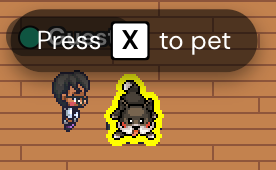
To interact with an object, press X while facing the object. You can also press Z to dance and F to throw confetti!

Your audio and video will automatically be connected to others within 5 tiles of you, unless you are ghosted or have enabled do not disturb.
Keyboard Shortcuts
| Shortcut | Action |
|---|---|
| Ctrl/⌘ + Shift + A | Toggle Microphone |
| Ctrl/⌘ + Shift + V | Toggle Camera |
| Ctrl/⌘ + U | Do not Disturb ON |
| Ctrl/⌘ + O | Do not Disturb OFF |
Bubbles, Chat, and More
A Bubble can be enabled by right-clicking on the desired player and selecting "Start Bubble". Users in bubbles are only connected to others in the same bubble, but anyone can join the bubble anytime!
Gather also has a Chat feature  , found in the bottom right-hand menu. You have the option to message everyone in the room, people nearby (within 5 tiles) of you, or privately message anyone in the space.
Note that none of the above will apply if you are in a private area. In a private area, you can only communicate with others in the same private area.
Gather’s screen share feature  is useful for demoing projects during the Expo fair.
Finally, you can mute others by hovering over their video feed and turning off their audio/video. Note that muting only applies on your end. Or, you can block them by finding them in the player list  , right-clicking, and clicking the triple dots
  .
.
Please reach out to Maggie McAndrew or Safiyah Fatima if you encounter any issues.